

Start here
What Two-Factor Authentication Actually Does
Next
The Main Types of 2FA
Then
How to Choose the Right Method for Each Account
When you're ready
Setting Up 2FA Without Locking Yourself Out
Finally
Where 2FA Fits in a Broader Security Routine
What Two-Factor Authentication Actually Does
A password is a single line of defense. If it's exposed in a data breach, guessed by an attacker, or reused across sites, that's often enough for someone to walk straight into your account. Two-factor authentication (2FA) closes that gap by demanding a second, independent proof that you're really you.
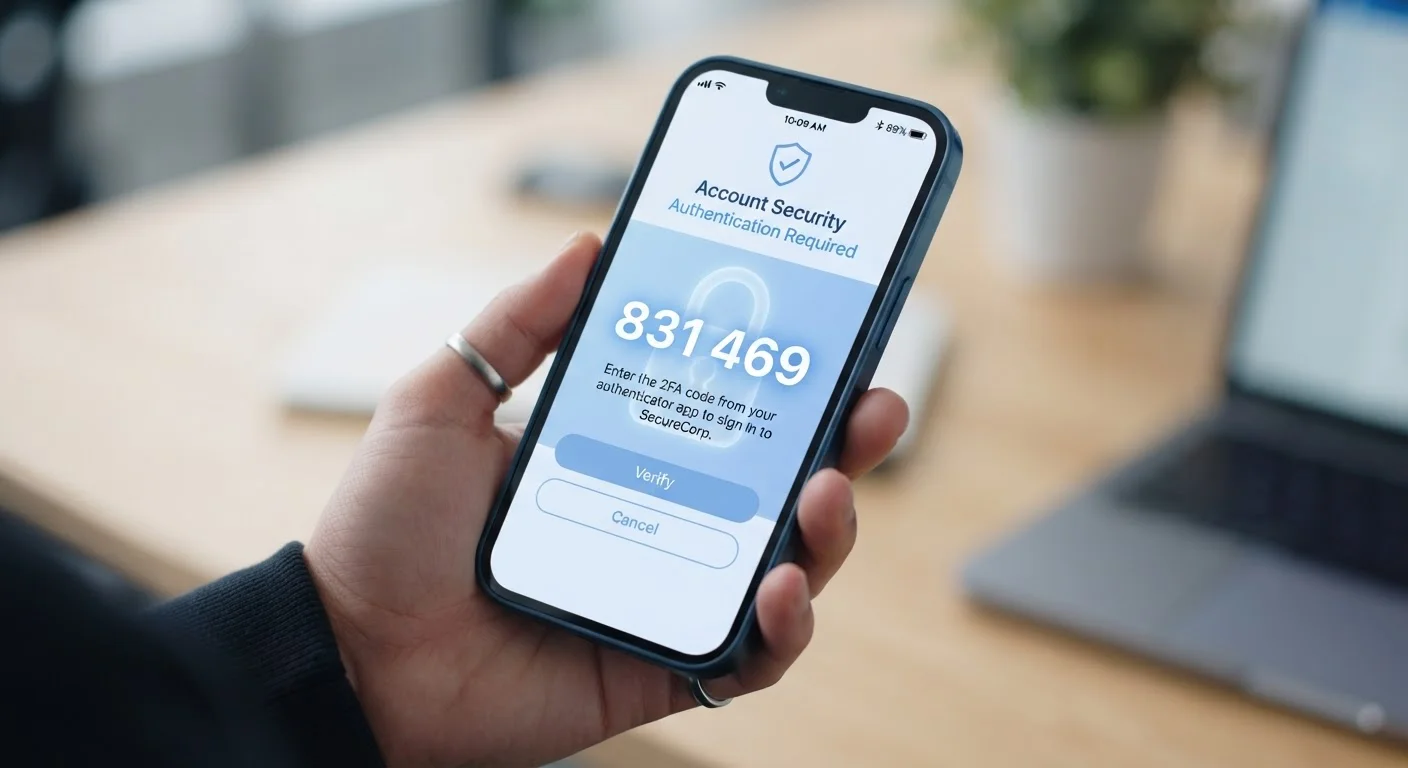
The core idea is simple: to get in, you need something you know (your password) plus something you have or are - a temporary code on your phone, a hardware key, or a biometric scan. Both must be present at the same time. This means a stolen password alone is no longer enough to compromise your account.
Two-Factor Authentication (2FA)
A login process that requires two separate proofs of identity - typically a password plus a temporary code or biometric - before granting access.
TOTP
Time-Based One-Time Password. A short numeric code generated by an app on your device that expires every 30 seconds and is not sent over any network.
SIM Swapping
A scam where an attacker convinces a mobile carrier to reassign your phone number to a SIM card they control, allowing them to intercept your SMS verification codes.
Passkey
A modern login credential stored on your device that uses biometrics or a PIN to authenticate you, replacing both password and second factor in one step.
Hardware Security Key
A small physical device that plugs into your computer or taps via NFC to verify your identity using cryptography, and confirms you're on the legitimate website.
Backup Codes
Single-use recovery codes generated when you set up 2FA, used to regain account access if your primary second factor becomes unavailable.
2FA is now available on virtually every major platform - email providers, banks, social networks, cloud storage - and enabling it takes only a few minutes per account.
The Main Types of 2FA
Not all second factors are equally secure or convenient. Here's how the most common options stack up:
SMS and Voice Codes
The service texts or calls you with a short numeric code. It's frictionless - no extra app required - but phone numbers can be hijacked through SIM-swapping, a scam where an attacker convinces your carrier to transfer your number to their SIM card. For low-risk accounts, SMS is an acceptable upgrade over password-only login; for banking or email, it's worth considering a stronger option.
Authenticator Apps
Apps like these generate time-based one-time passwords (TOTP) - six-digit codes that refresh every 30 seconds. The codes are generated entirely on your device and never travel over the cellular network, making SIM-swapping irrelevant. Setup involves scanning a QR code from the service once; after that the app works offline.
Hardware Security Keys
A small physical device you plug into a USB port or tap via NFC. The key performs a cryptographic handshake with the website, confirming both your identity and that you're on the legitimate site - not a fake lookalike. This makes hardware keys the most phishing-resistant option available to consumers today.
Passkeys
Passkeys replace the password and the second factor in a single step. Your device (phone, laptop, tablet) stores a cryptographic key; you unlock it with a fingerprint, face scan, or PIN. The private key never leaves your device, and there's no shared secret for a server to leak. Passkey support is growing across major platforms and browsers, though not universal yet.
Authenticator Apps Work Offline
Because authenticator apps generate codes using a local clock and a shared secret established during setup, they don't need a cellular signal or Wi-Fi to work. This makes them reliable even when traveling or in areas with poor reception - a practical advantage over SMS codes that depend on your carrier delivering a message.
How to Choose the Right Method for Each Account
A practical way to think about this: match the strength of your second factor to the sensitivity of the account.
- Email accounts - Use an authenticator app or passkey. Email is the master key to your digital life; password-reset links for every other service land here.
- Financial accounts - Use whatever the institution supports beyond SMS. Hardware keys or authenticator apps are preferable.
- Social media and streaming - SMS 2FA is a meaningful improvement over nothing. Upgrade to an authenticator app if the service allows it.
- Work or business accounts - Follow your organization's policy. Many employers require authenticator apps or hardware keys for compliance reasons.
If an account only offers SMS 2FA, enable it anyway. Imperfect protection is still substantially better than a password alone.
Setting Up 2FA Without Locking Yourself Out
The most common complaint about 2FA is getting locked out after switching phones or losing access to an authenticator app. A few habits prevent this entirely:
- Save backup codes immediately. When you enable 2FA, most services generate a set of single-use recovery codes. Download or print them and store them somewhere you'll find them - not only on the same device as your authenticator app.
- Register a backup method. Many platforms let you add a secondary 2FA option (e.g., both an authenticator app and a hardware key). Do this before you need it.
- Back up your authenticator app. Some apps include an encrypted cloud backup feature. Enable it, but understand it moves some security responsibility to that cloud account's own protection.
- Note account recovery contacts. Keep an up-to-date recovery phone number or email on file, so account recovery doesn't stall if your primary method fails.
Don't Store Backup Codes Only on Your Phone
If your phone is the device running your authenticator app and also the only place your backup codes are saved, a lost or broken phone can lock you out of multiple accounts simultaneously. Keep a printed copy or an encrypted note in a separate, secure location. Think of backup codes like a spare house key - useless if it's stored inside the house.
Where 2FA Fits in a Broader Security Routine
Two-factor authentication is a powerful control, but it works best as part of a layered approach rather than a standalone fix. A strong, unique password for every account is still the foundation - 2FA protects you if a password leaks, but a weak, reused password makes that scenario far more likely in the first place.
If you haven't already, a password manager makes managing unique passwords across dozens of accounts genuinely practical. Combined with 2FA, these two tools address the vast majority of credential-based account compromises.
It's also worth understanding what information your apps access and share. Reviewing app permissions periodically helps ensure your security efforts aren't undermined by an app quietly collecting more data than it needs.
For most people, the priority order is: enable 2FA on email first, then financial accounts, then everywhere else. Each account you secure meaningfully reduces your exposure - and with authenticator apps and passkeys now widely available, the friction involved is lower than it's ever been.
Frequently Asked Questions
Two-factor authentication (2FA) means proving your identity in two separate ways before you can log in. Usually that's your password plus a temporary code or a biometric check. Even if someone steals your password, they still can't get in without that second factor.
SMS 2FA is much better than no 2FA at all, but it has known weaknesses - phone numbers can be hijacked through SIM-swapping attacks, and texts can be intercepted. For accounts that hold financial or sensitive personal data, an authenticator app or passkey offers stronger protection.
Most services provide one-time backup codes when you first enable 2FA. Store these codes somewhere safe - printed out or in an encrypted note - so you can regain access if your phone is lost or damaged. Without them, account recovery can be a slow, manual process.
Passkeys are designed to replace both the password and the second factor in a single, cryptographic step. When a site supports passkeys, you authenticate using your device's biometric (face or fingerprint) or PIN instead. Not every service supports them yet, so passwords remain necessary on many platforms.
Yes. Most authenticator apps let you add as many accounts as you need, each generating its own rolling code. You'll scan a QR code from each service during setup, and the app keeps them organized in one place.
It raises the bar considerably - a phisher who captures your password still needs the live 2FA code. However, sophisticated phishing kits can relay codes in real time. Hardware security keys and passkeys are the methods most resistant to phishing because they verify the specific website's identity before authenticating.
The content on this site is for informational purposes only and is not a substitute for professional advice. Always consult a qualified professional for guidance specific to your situation.